My €400 Budget NAS That Replaced Google Drive and the Cloud
TrueNAS, Docker apps, mirrored disks, and offsite backups on cheap hardware

I wanted to setup a NAS server for quite some time. So finally I took the time to put together a NAS which is high-performing and on a tight budget. Let me walk you through the hardware and software components for the NAS and how I set them up.
TL;DR
€400 total cost
4TB mirrored storage
TrueNAS + Docker apps
Offsite backups to Hetzner
Handles Photos, Media, Kubernetes backups
The Case and CPU
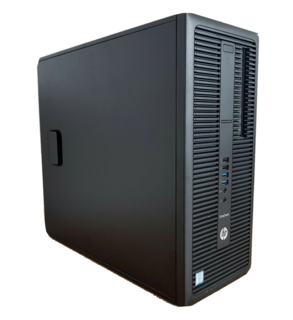
Disks and backups matter far more than CPU for a NAS. Even an old i5 is overkill unless you're trans-coding or running many containers. I wanted something which can run a few docker containers and is also extensible. That’s how I came across this used PC - HP EliteDesk 800 G2 on ebay. It was perfect for my use case due to following reasons,
I5 6th Gen is power efficient and can easily run a few docker containers in additional to NAS server components. The whole setup consumes around ~25W on moderate load with a few containers.
There is slot for 3 Hard disk drives and SSDs. There are 5 Sata ports available.
Highly extensible with 3x4 PCIE lanes and a x16 PCIE lane
Supports 64GB of RAM. The item came with 8 GB included (2x4GB) which was enough for a start.
It supports Intel QuickSync for video transcoding
The Motherboard and CPU doesn’t support ECC memory. But it was a trade-off that I was willing to take.
Cost: 70 Euros
Hard Disks
This is where I made my first mistake. I went for really cheap SSDs from Aliexpress. I bought 2 4TB hard-disks from a seller named KANDA Store here. 4TB SSDs for 40$ was obviously too good to be true. These drives are usually fake firmware + tiny flash chips.
Lesson learned: Never trust suspiciously cheap storage.
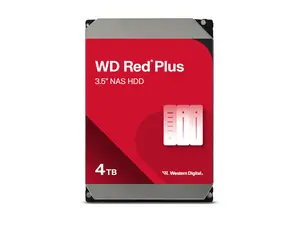
Learning from my mistake, I ordered a couple of WD Red Plus 4TB from Digitec. There is little to no noise, and the performance was better than I expected. It also came with a 5 year warranty.
This was the most expensive component of the NAS build. As someone who takes backups seriously, it was well worth to spend on reliable hard-disks.
I had a 120GB SSD from an old laptop laying around. I decided to use that as the boot disk.
The layout I was planning for was pretty simple. Just 2x4TB disks in mirrored pool (RAID1) with 120GB ssd as boot drive. This setup cuts the capacity in half but protects against a single drive failure, providing about 3.6TB of usable storage space.
Remember: RAID is not backup - it only protects against disk failure, not deletion or corruption.
Cost: 220 Euros
Memory
The PC came with 8GB of RAM included. I did the initial build with that and it was more than enough. Then I decided to run more apps like Jellyfin, Immich and Minio on the NAS. Then it made sense to add more RAM.
The motherboard was 4 slots available for installing RAM. So I bought two 16GB memory sticks from Aliexpress here. This gave me 32GB of RAM with room for expansion later if needed.
Cost: 54 Euros
Total Cost
The minimal version of the NAS was ready for ~290 Euros. The additional RAM and a few other components (lan cables, switch, SATA cables etc.) the total cost came to over 400 Euros. But I was able to cut down my cloud spending on backups and google storage to compensate this.
Services I run
Here is a screenshot of my storage layout.
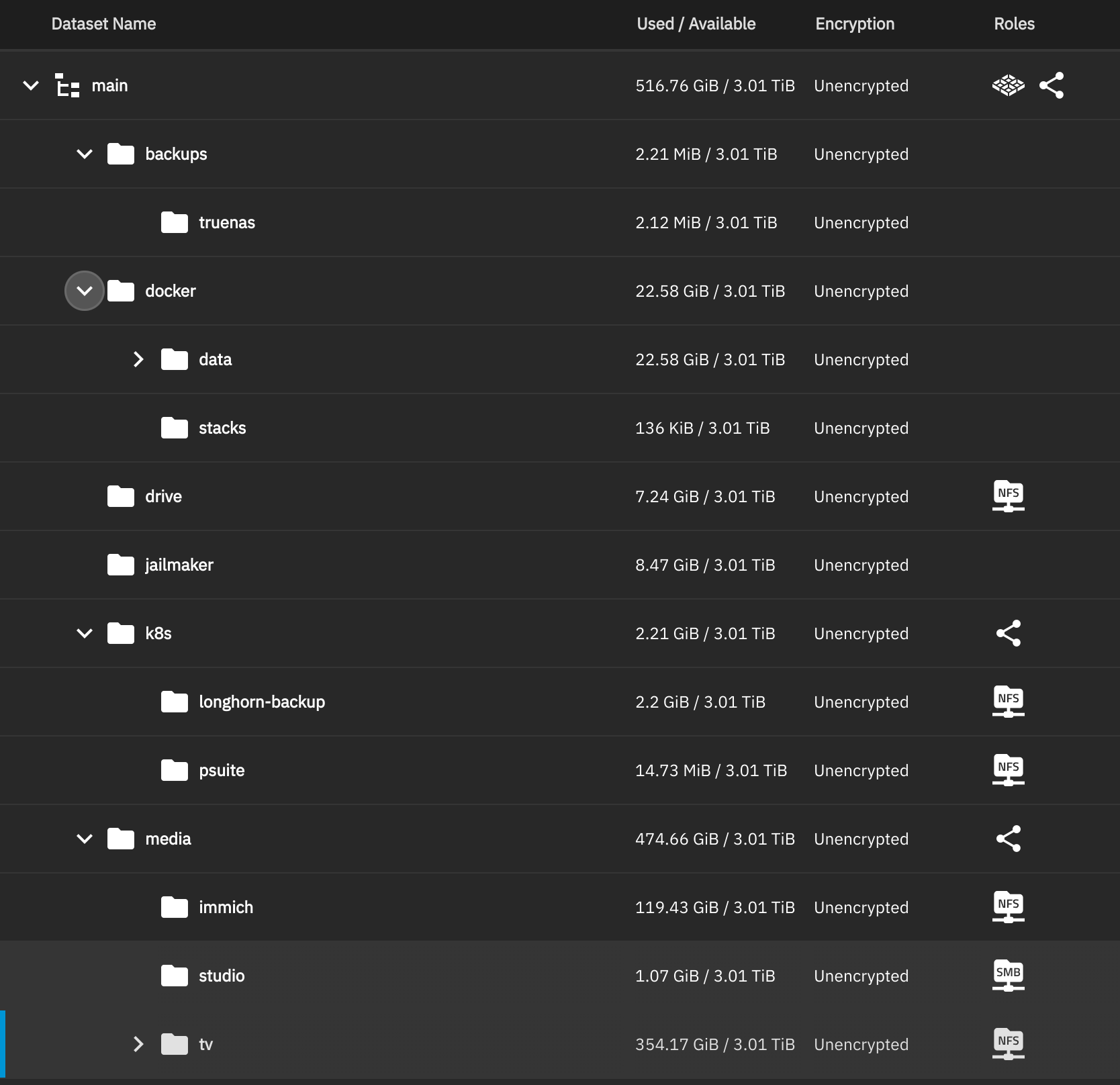
Below is the list of important services my NAS runs,
NFS server used by my homelab kubernetes cluster for PVC backups
Storage for Immich, an alternative to google photos for storing my photos and videos
Samba server
studio, used for video editing across devicesNFS server for
tv. It hosts my home videos as well as content I download through *arr stack
I will make a separate post to go in depth about the services I’m running in the Homelab.
Data Protection
By moving my digital life to a self maintained NAS server, I also bear the risk of losing everything in the event of a catastrophic failure (as it already happened when I bought the SSDs from Aliexpress and both SSDs failed at the same time). So it is important to have a offsite or cloud backup for the entire NAS where we can restore from.
Hetzner Storage box was the perfect solution for this. 1 TB of storage only costs ~3.8 Euros per month. It comes with SSH and Rsync access. I just had to setup rsync cronjobs in my NAS to backup periodically.
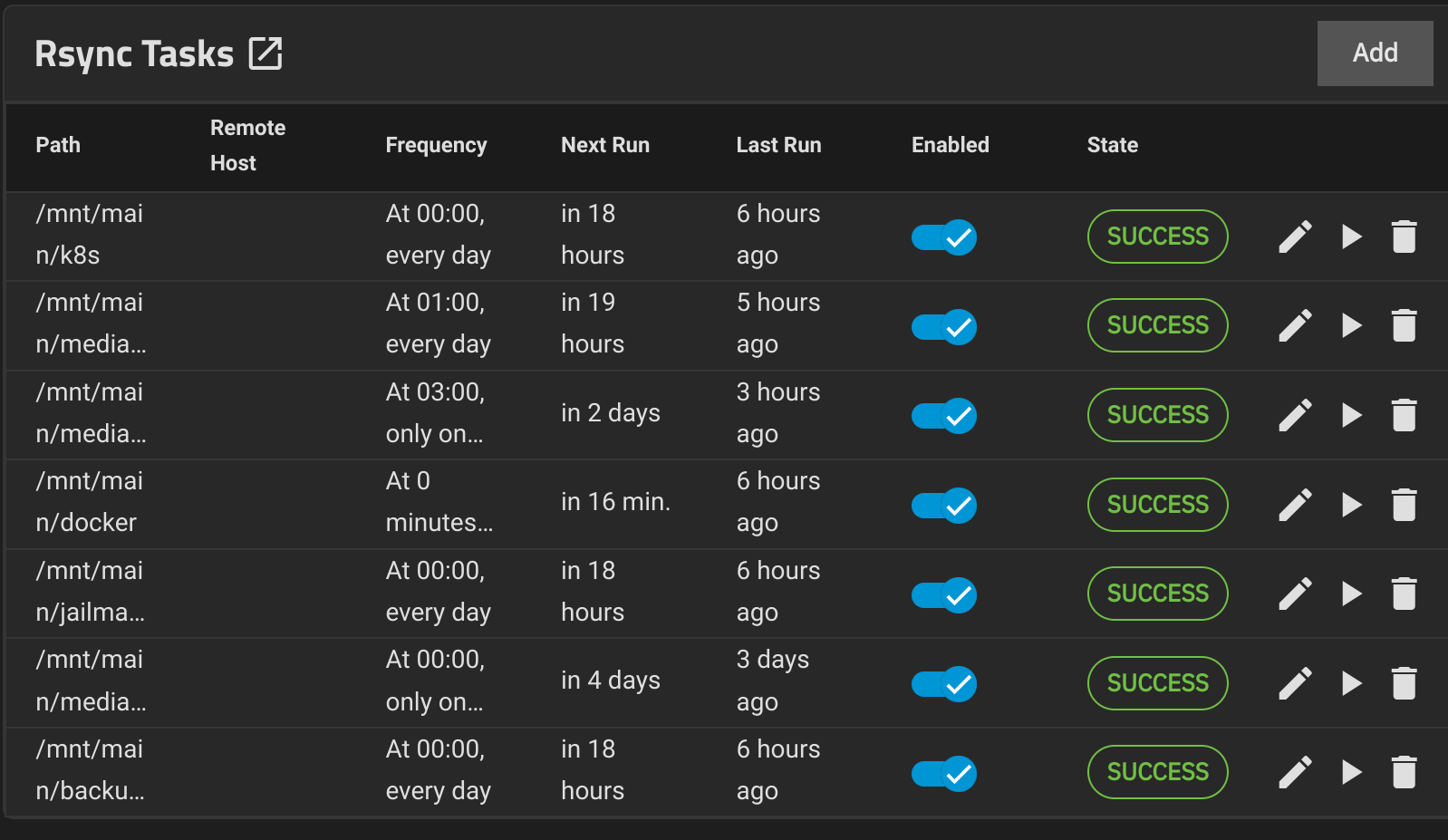
Another important part is to setup alerts correctly. TrueNAS has a sensible default configuration for alerting. I used telegram alerts in addition to email notifications. I already had a homelab channel setup in Telegram which I use for alert-manager notifications, so it made sense to re-use it for NAS as well.
Running Apps
I was hesitant to use the hypervisor from TrueNAS to run apps, as VMS are more resource intensive than docker containers. Then I came across this cool project named Jailmaker. By following the tutorial provided on the readme, I was able to quickly set it up along with Docker and Dockge
Dockge is a UI on top of docker and docker-compose. It lets you create and manage docker stacks through UI. It was quite handy given the limited shell access from Truenas (and the additional pain of exec-ing into the Jails)
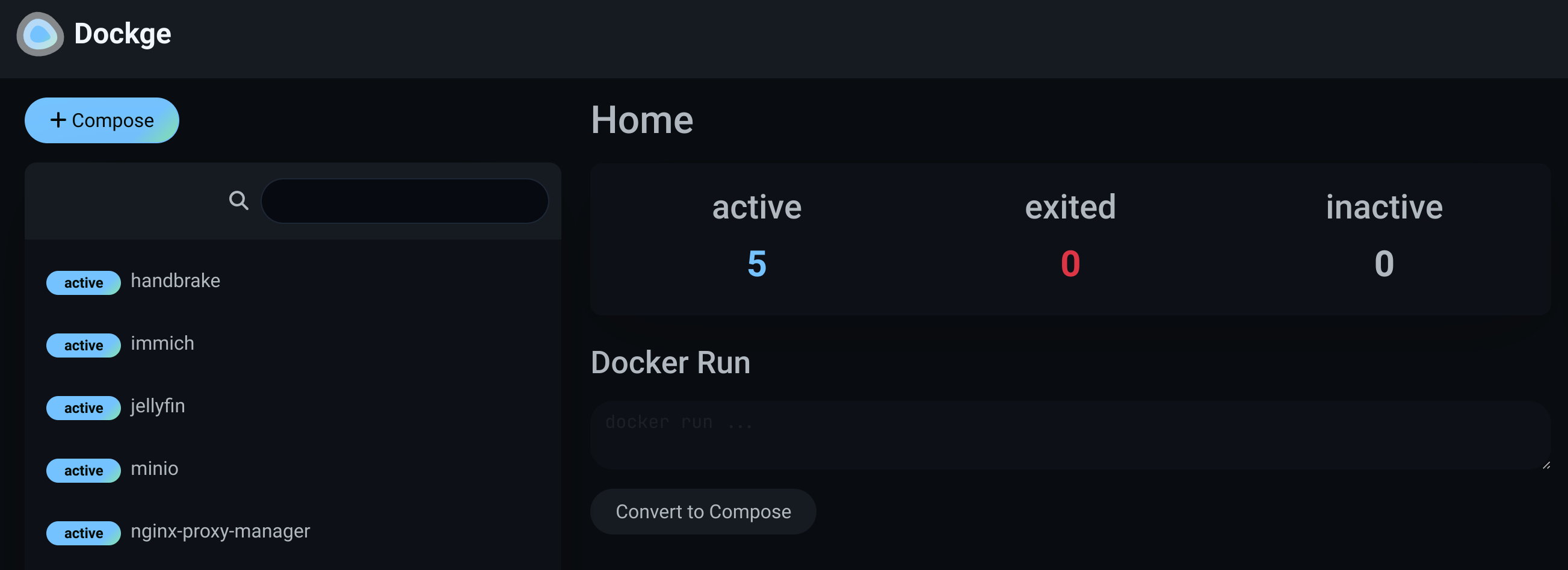
I run the following services in Dockge
Handbrake -> Batch video transcoding before archiving
Immich -> Alternative to Google photos. It has almost all the features google photos has, and very similar UI.
Jellyfin -> For media playback across devices. I was able to setup hardware transcoding using Intel QuickSync by setting up GPU passthrough in Docker.
MinIO -> Alternative to Amazon S3. I use it for restic backups from my PC and a few apps running on k8s
Nginx Proxy Manager -> A graphical front-end to Nginx. I use it as a reverse proxy and certificate manager for the above apps
Monitoring and Uptime checks
So I have alerts setup if something is wrong with the regular operation of NAS. What about Apps which are running in docker? What if the whole NAS is down or network is down?
For this, I have 2 more things setup.
Healthchecks → Whole server dead?
Uptime Kuma → Specific service dead?
Healthchecks.io
healthchecks.io is a dead-man-switch service which notifies you if a service is down. The way it works is quite simple. The server has to ping the health-check endpoint in a predefined interval (I set it to 1 min in my case). If it fails to do so, the service will notify you by email or any other means. This is quite handy to notify when the network itself is down or the whole NAS has stopped responding.
Uptime Kuma
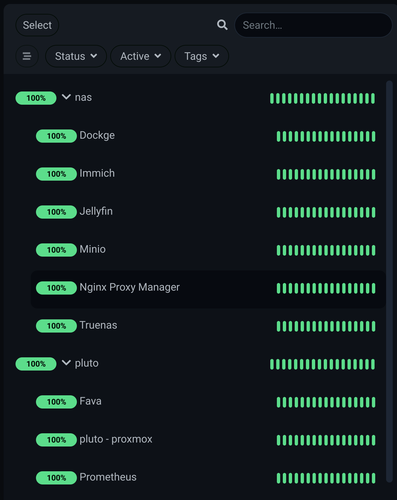
Uptime Kuma can ping your services on regular intervals and notify if the service is down. It even gives a nice status page summarizing the uptime of various services.
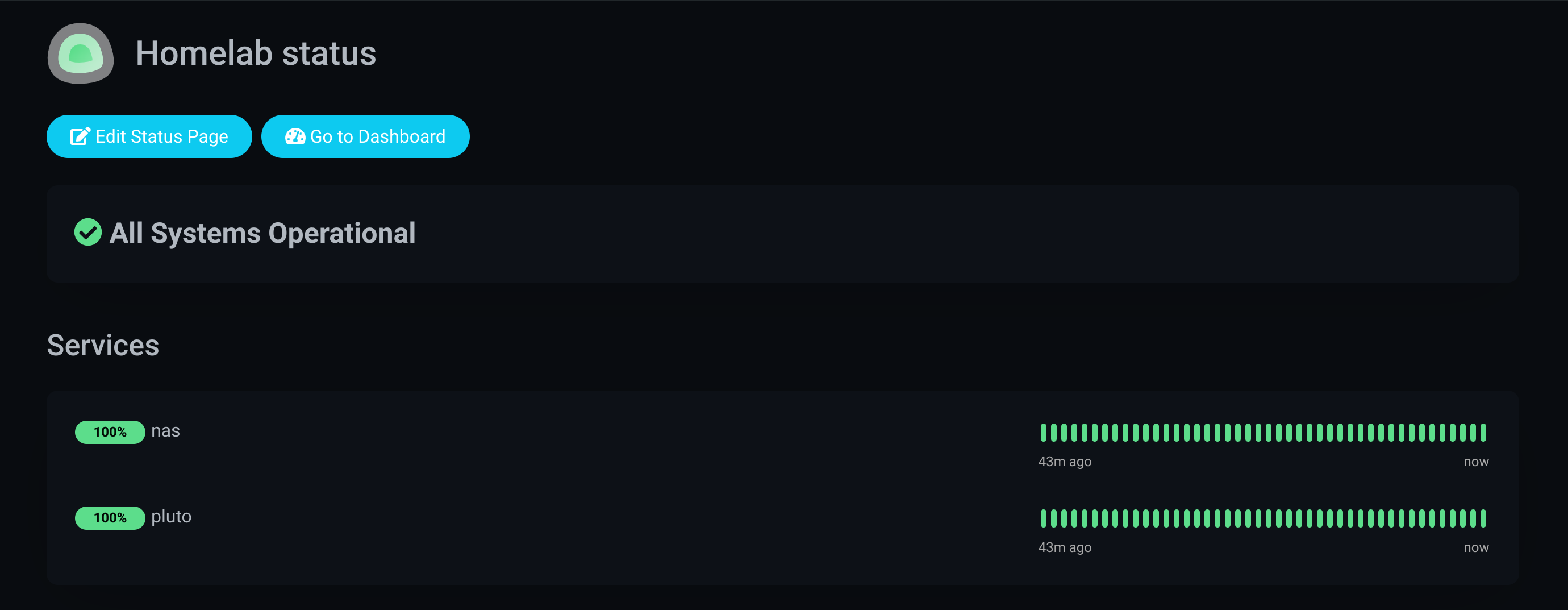
I’m running Uptime kuma in my kubernetes cluster. So unless both k8s and NAS apps fail at the same time, this should work as expected. If both NAS and K8s die at the same time, I probably have bigger problems.
Conclusion
Was it worth the effort and money? Absolutely! Setting up everything and configuring the automations, backups etc. took quite a long time. For €400 I now have full control over my data, lower monthly cloud costs, and a setup I can expand anytime. For me, that trade-off was easily worth it.
Comments
Join the discussionNo comments yet. Be the first to comment.